Repository technique For Sims 3 Objects with Texture Tweaker

Uploaded Oct. 31, 2026, 9:42 p.m.
Updated Oct. 31, 2026, 9:46 p.m.


What is the repository technique for objects?
If you are familiar with it from TS2, skip. For others, basically, it's a method of making file size of large sets of objects smaller, by linking textures from single main (master) object to other objects (slaved). Mostly used in The Sims 2, but can be used in The Sims 3 and I will explain how to do it in this tutorial. For TS3 CAS you can also do it in TSRW.
When I can use repository technique in TS3 for my conversions or original objects?
In case of 2t3 people in TS2 community usually wrote, if objects uses repository or not. But for 4t3, other games or original objects, it depends, if the set of similar objects use absolutely identical textures, and if the textures can provide correct UV for all mesh variations. In case of the project used in this tutorial, it's the same box, but in different sizes.
You need:
- Already made files of your Main object and Repo'ed objects. Keep in mind: for this tutorial, you should already know the basics of how to make/convert Buy Mode CC. This tutorial is a great starter, but visit Sims 3 Tutorial Hub and TS3 Creators Cave for the more in depth tutorials.
- S3OC
- Texture Tweaker 3 (TT3)
- S3PE (optional)
Main Tutorial
Preparation
- Open your already done main and repo'ed objects in S3OC, press "Clone or Fix", after that press "Create Clone Package" without renumbering. TT3 didn't accept objects cloned by TSRW, but keep originals in backup folder. If you cloned your objects in S3OC first, skip this step.
- If you know how to add names to resources (e.g textures), do this beforehand. I have no idea how to do this automatically for objects (CAS have "Name these files" in Mesh ToolKit), so feel free to add tutorial about it in the comments.
Now follow Contents of the images:
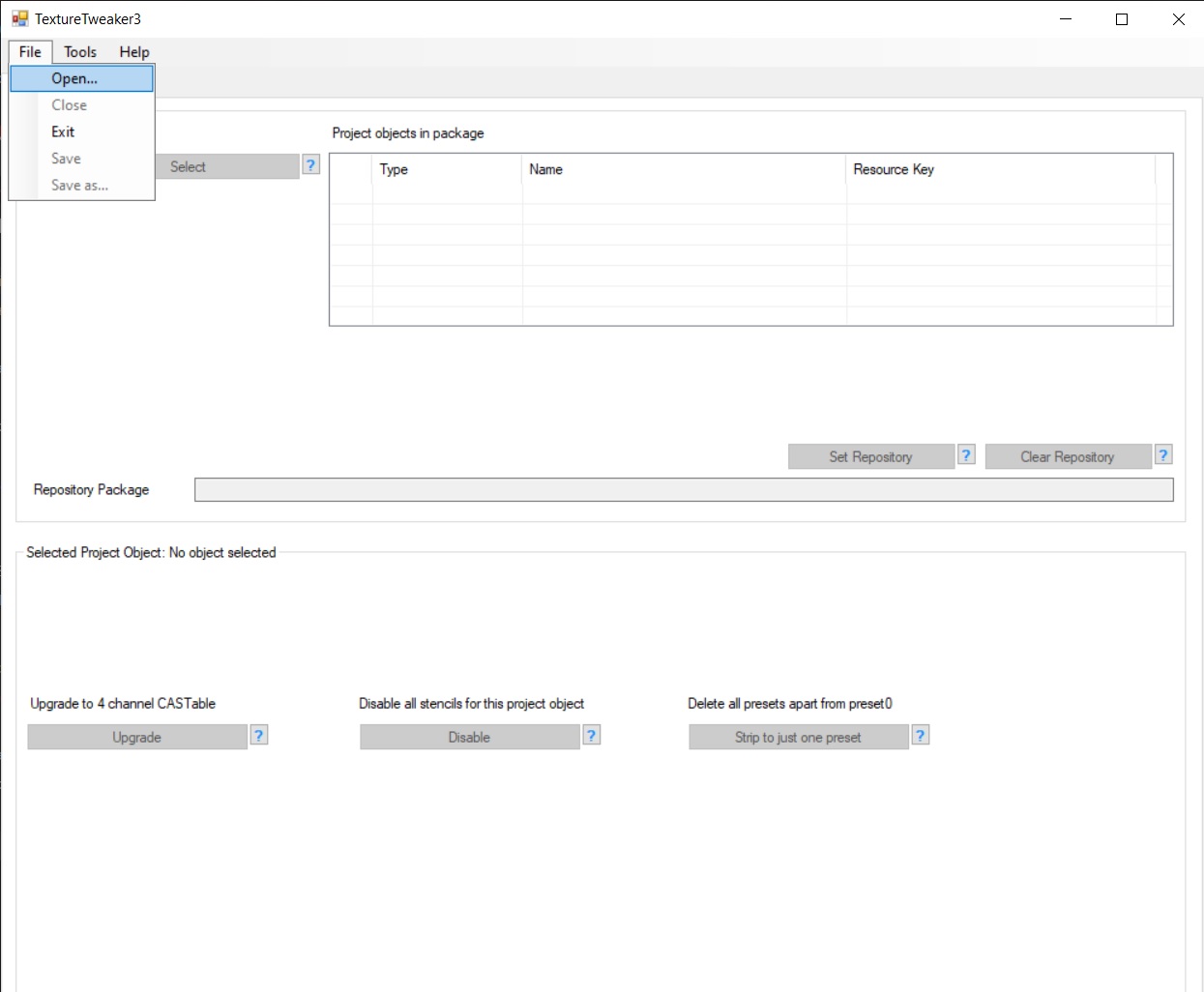
- Open TT3, navigate to File>Open... Select your repo'ed/slaved file.
- Press "Set Repository" Select your master/main file. Press Ok on popup.
- Navigate to "CASt Presets" tab, press pencil button on one of your textures (in my case it's mask).
- In opened window select "Choose Image from repository package".
- Select your texture from ResourcePicker. You can see what texture you choosed before pressing Ok in Image Picker. If you have set your image correctly, you should see identical texture to your original object, while in information window should be "This image is not in this package". Press Ok.
- Repeat with all other textures (specular, multiplier, overlay if applicable).
- You can press Commit button or just select next preset in dropdown. In popup "Would you like to commit this preset?" press Yes. When you switching from first (0 in TT3) it may show popup "This Diffuse TXTC cannot accommodate Pattern A". Just press OK and ignore it.
- When you're done, press "File>Save as..". Give it unique name to separate it from non-repo objects in case if something goes wrong, so you have a backup.
- If you have several repo'ed objects, repeat the same steps.
- (You can do it in TT3, but I prefer doing it in S3PE). Open yor new repo'ed/slaved files in S3PE, Select all IMG resources and delete them, because now objects should refer to textures in your main master package. Save. This step significantly reduces file sizes, which is the main point.
- Install your main object and repo'ed objects in Mods/Packages. Test in game, they should render all presets and be recolorable in CASt correctly.
- That's it! If you put your files for download, don't forget to notify, that users need to have both main/master and slaved/repo'ed files.